
A lifetime of photos, in one place.
Phones, cameras, scanned prints and old hard drives all land in one library on your server. Frameleaf keeps the originals as ordinary files and makes them fast to browse, however many there are.
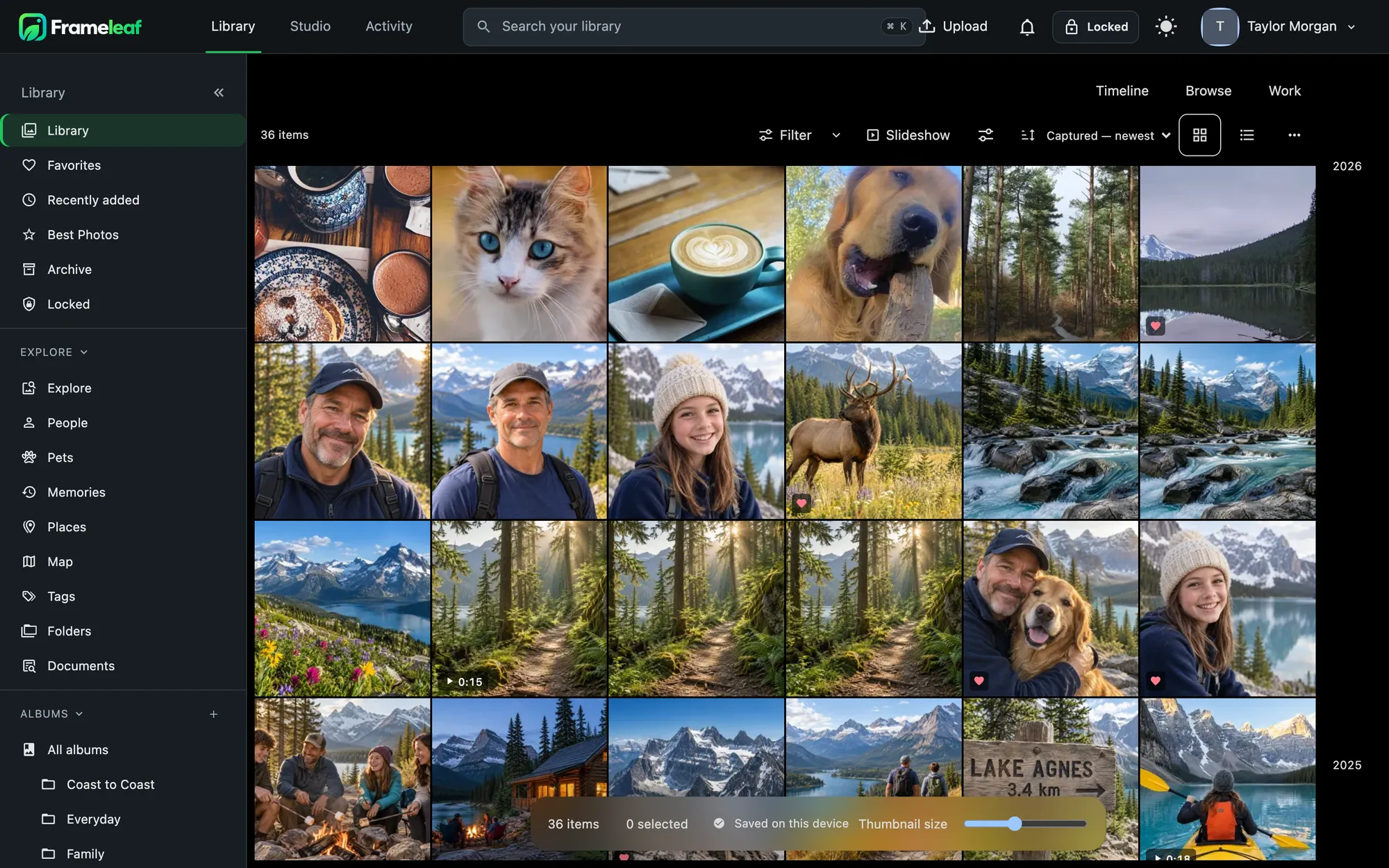
Three ways to see the same library.
Your place, filters, sort and selection carry across all three. Hold ⌘ and scroll, or press D, M or Y, to change the grouping. Pinch or press + and − to resize thumbnails.
- Timeline groups by day, month or year, with sticky headers and a scrubber for jumping decades.
- Browse is a dense grid with nothing but photos.
- Work shows stars and rejects for culling a shoot, with an info panel at your side.
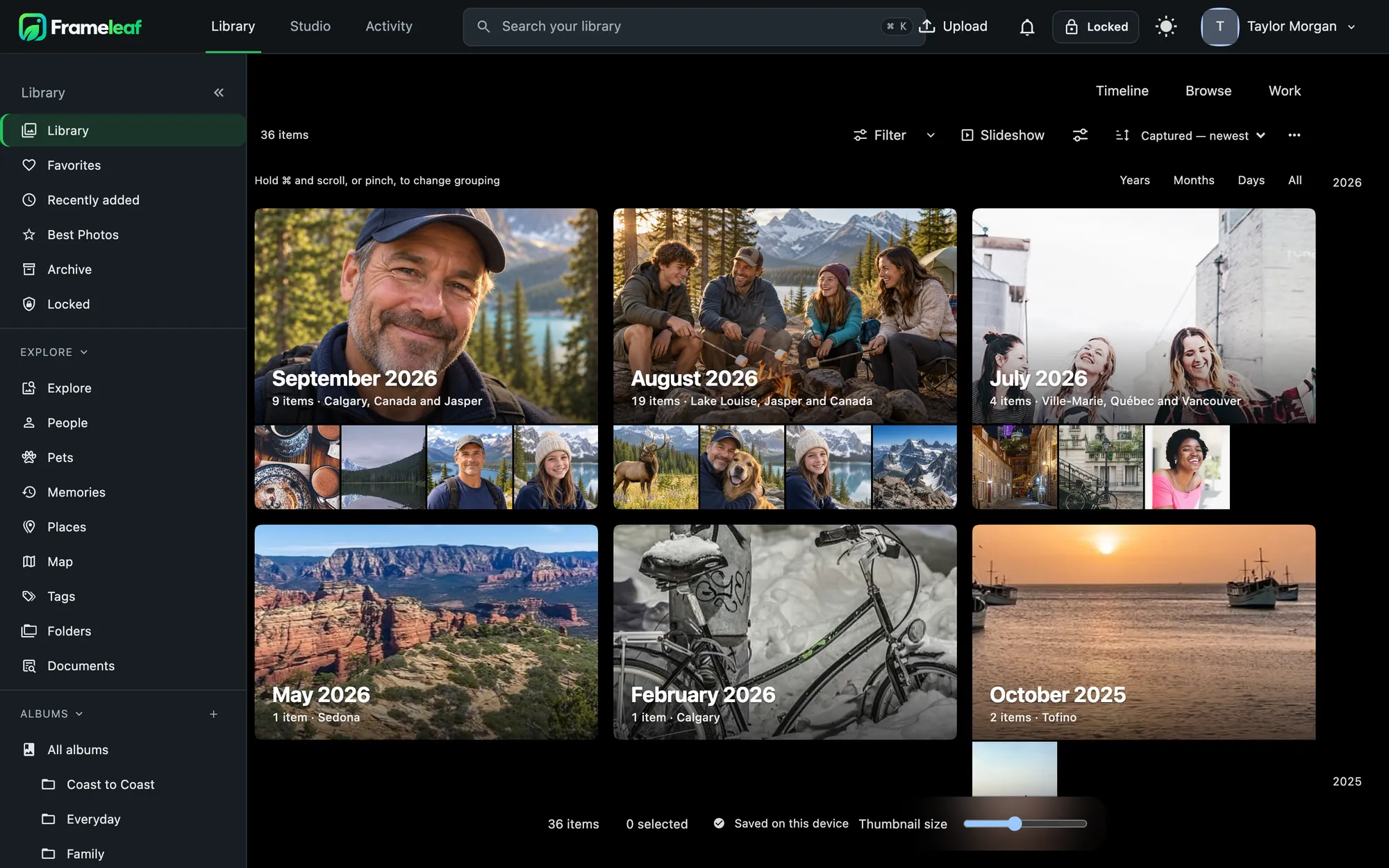
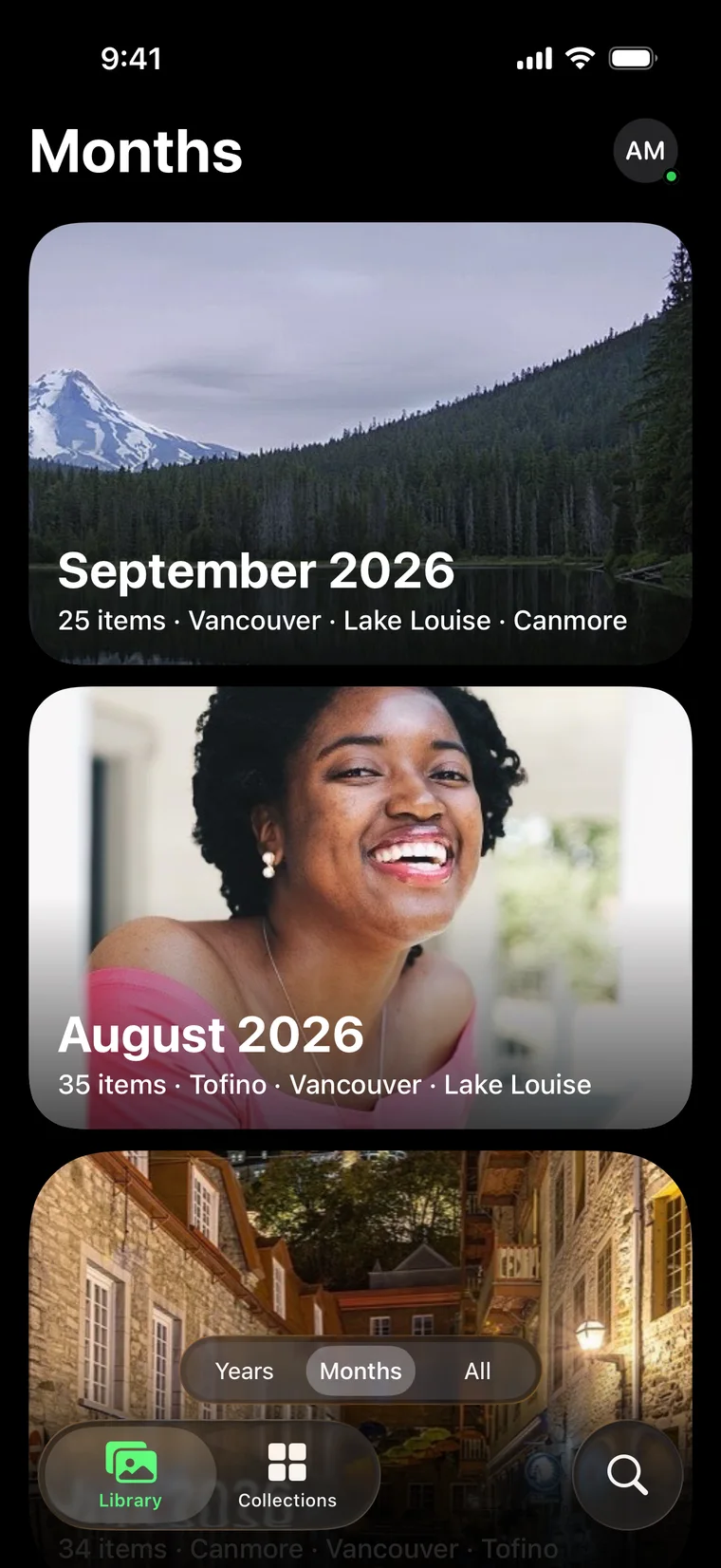
Years and months as cover cards.
Each year and month gets a card with its best photo, how many you took and where you were. The cover is chosen by Frameleaf's quality score, then your rating. On your phone, times show the clock where the photo was taken: 6:42 in Banff reads 6:42 wherever you are.

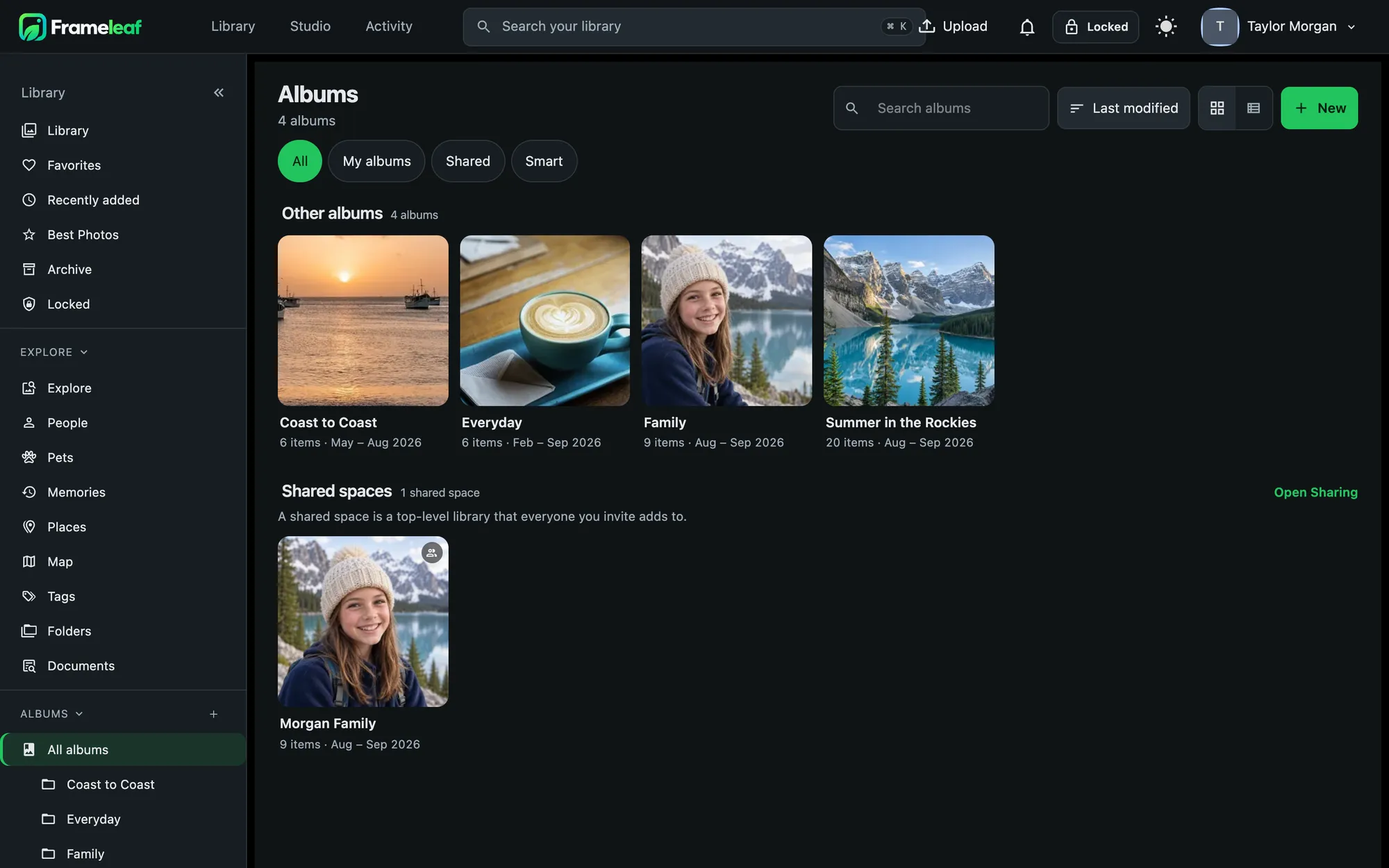
Organise the way you think.
- Albums for stories and trips, with a custom order, a description, a cover and an icon.
- Collections group albums one level deep. Drag an album onto one to file it.
- Folders show originals exactly as they are stored on disk.
- Tags nest as deep as you like, in eight colours, and are read from and written back to your files.
- Pins keep up to 50 albums, people, pets, memories and searches one tap away, synced across devices.
Hundreds of changes at once.
- Select with a click, Shift-click for a range, or a day header for the whole day.
- Then favourite, add to an album, tag, stack, change the date or location, archive, lock or share, all from one bar.
- Shift dates for a whole trip by hours or days, keeping each photo's time zone.
- Undo is there for deletes and for every big change.
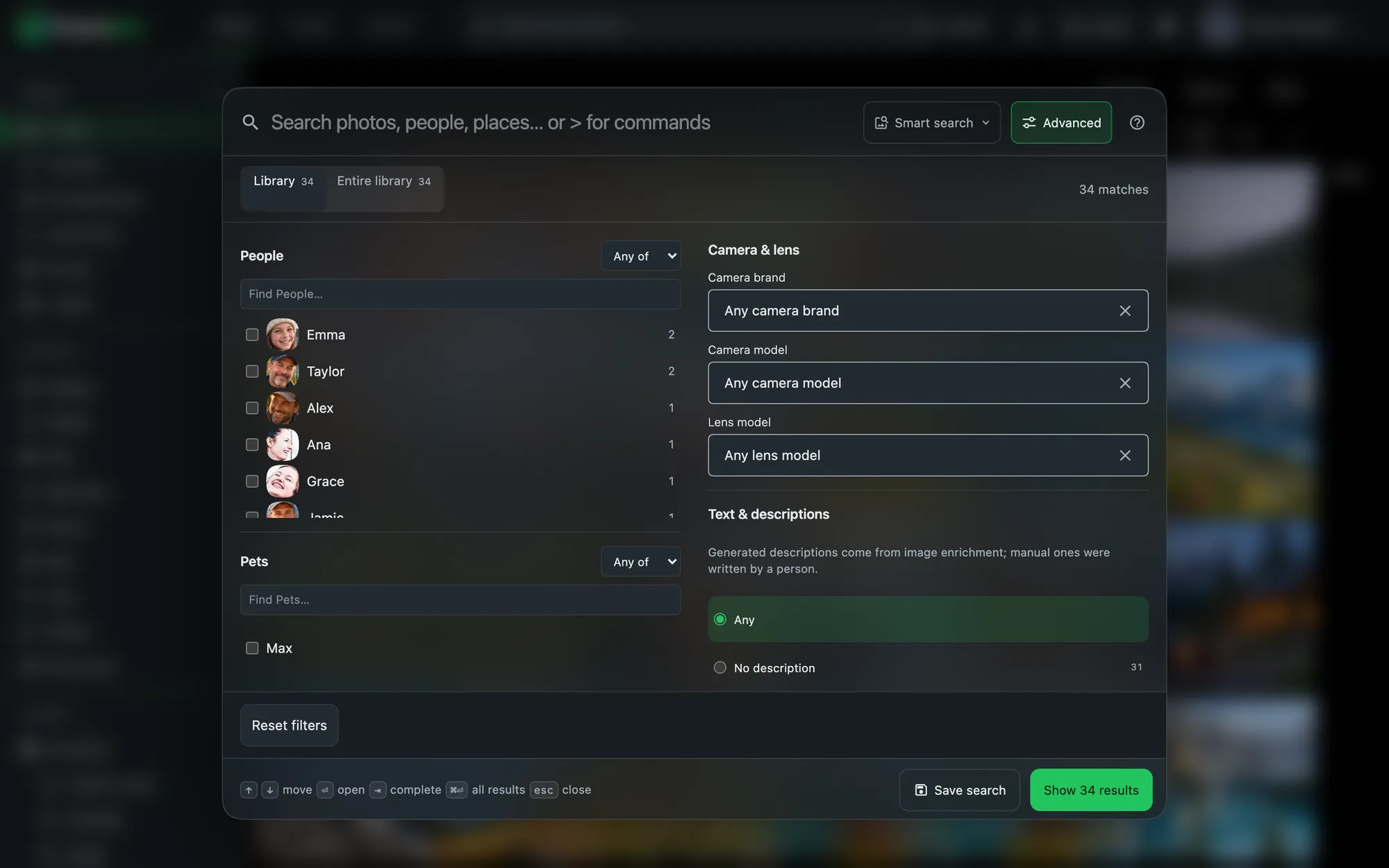
Bring in what's already on your disks.
Point Frameleaf at folders you already keep on a NAS or drive as an external library. They're indexed in place, never copied, don't count toward anyone's quota, and are rescanned nightly or on a schedule you set. Exclusion patterns keep thumbnails and system files out.
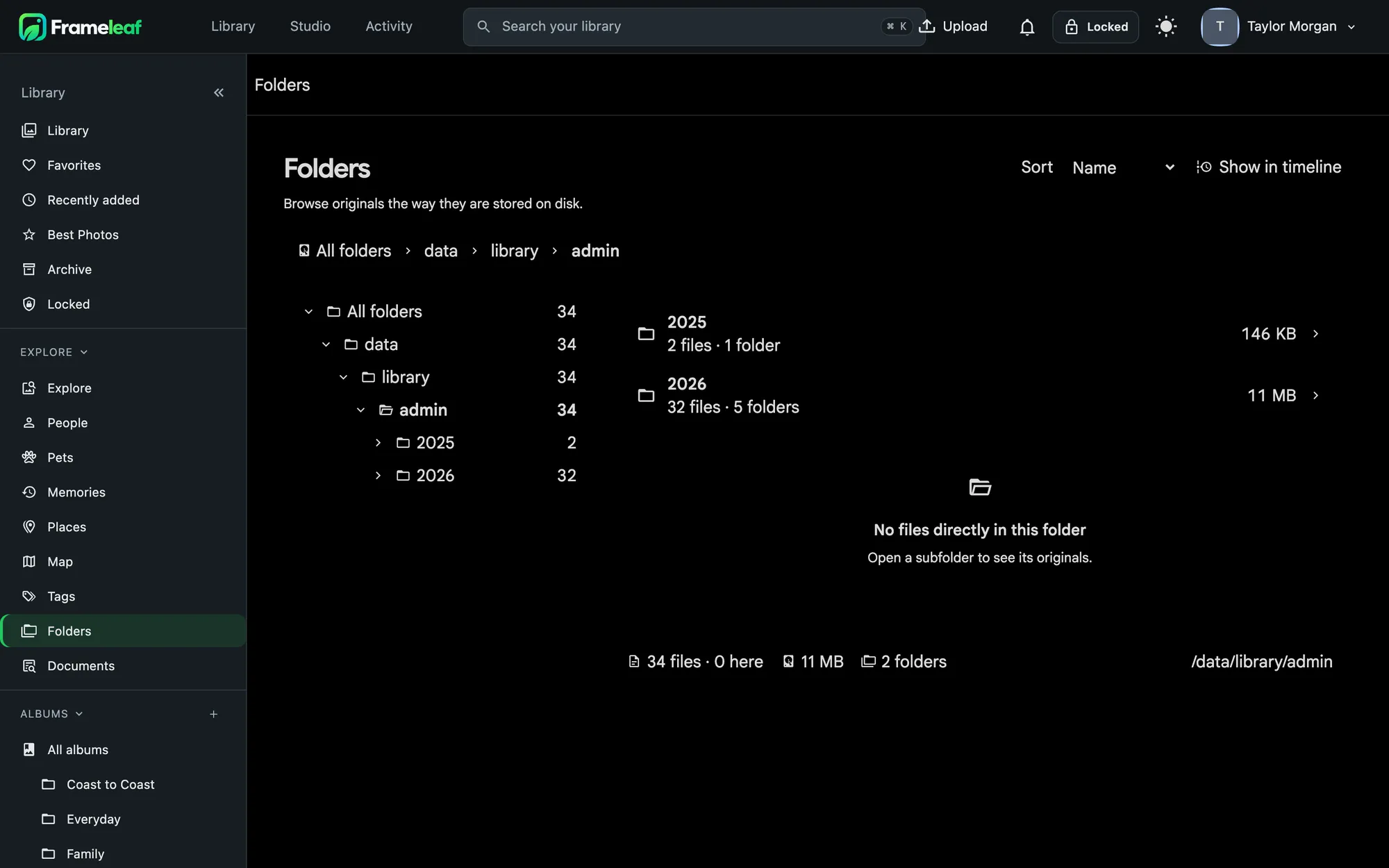
Every format you shoot.
The info panel shows camera, lens and exposure, where the photo was taken, who's in it, tags and a checksum. Edit the description, date, time zone, location, rating and faces right there.
- Images in JPEG, HEIC, PNG, WebP, AVIF, JPEG XL, TIFF, PSD, GIF, SVG and RAW from major cameras.
- Video in MP4, MOV, MKV, WebM, AVI, M4V, MPEG-TS and more, transcoded for smooth playback.
- Live Photos and Motion Photos kept together as one item.
- Sidecars description, rating, date, location and tags are written to XMP so other apps see your changes.
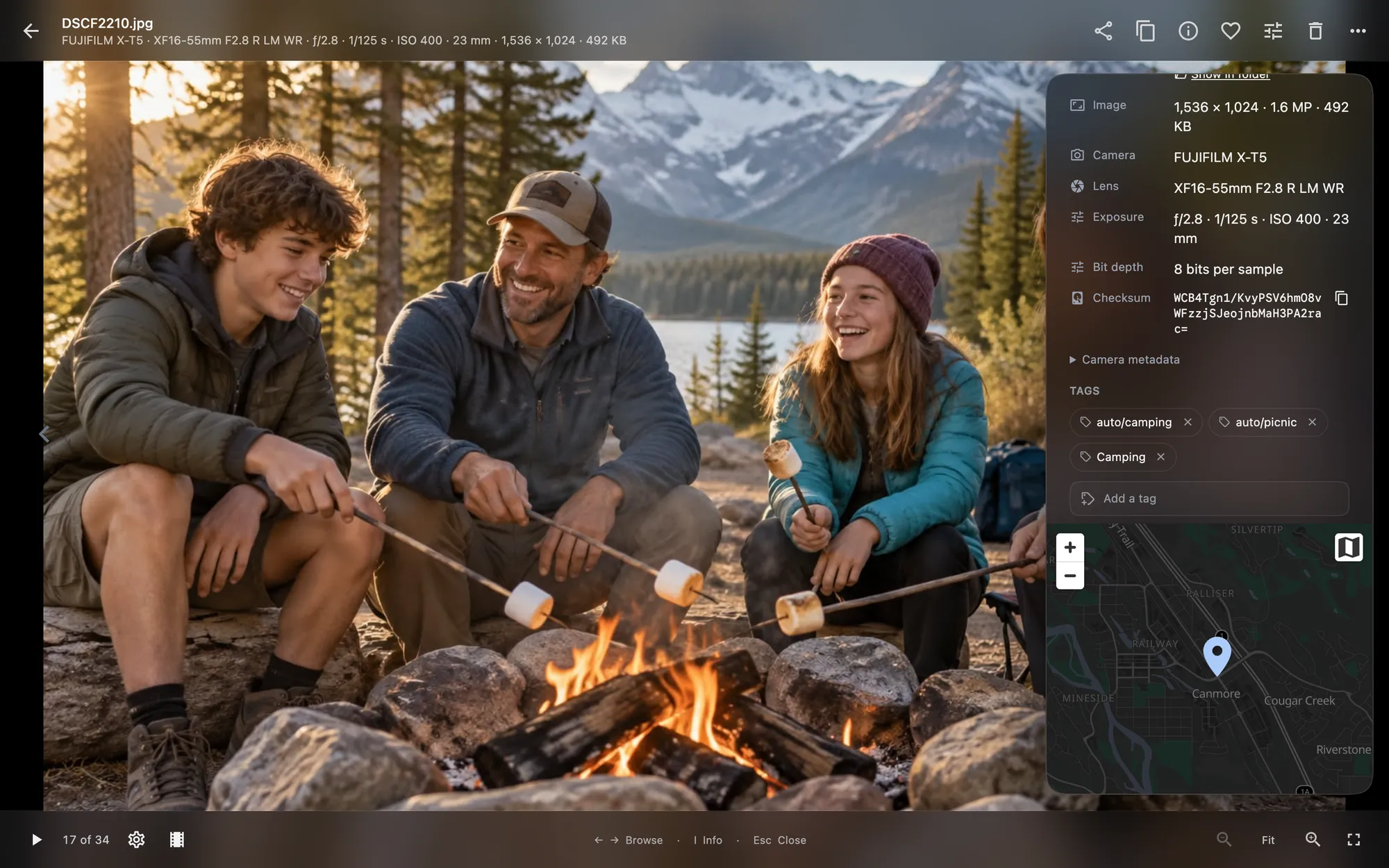
Details that add up.
Never stored twice
Uploads skip anything already in your library, and re-uploading after a hiccup only sends what's missing.
Stacks
Bursts and edited copies stack with their originals, so the grid stays clean.
Slideshows
Fade, slide, Ken Burns or the Memories transition, with captions and shuffle, and the screen stays awake.
Cast to a TV
Send a slideshow to a Chromecast on your network. Off until you turn it on, because it loads Google's scripts.
A patient trash
Deleted items wait 30 days by default. Restoring keeps albums, favourites, tags, stacks and locks.
Everyone's own library
Each person in the household gets a private library and storage limit, with sharing only where they choose.
Keyboard first
Rate with 1 to 5, F to favourite, I for info, E to edit, / to search and ? to see them all.
Big files, found
Large files lists your biggest originals, with an undoable move to trash.